
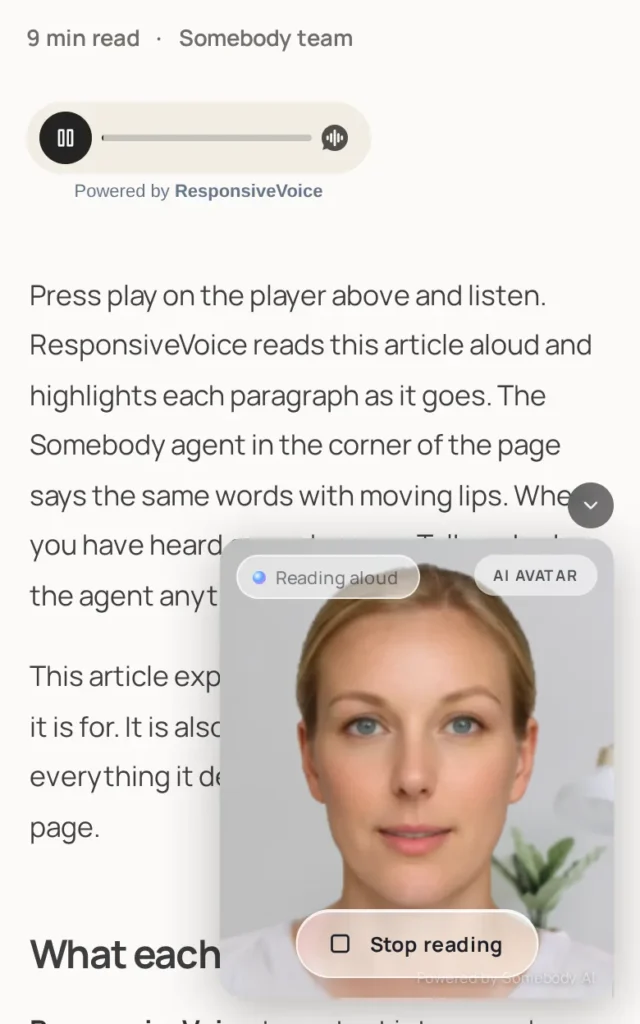
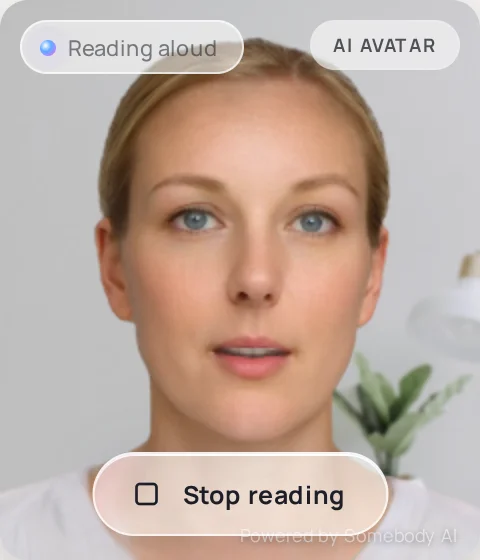
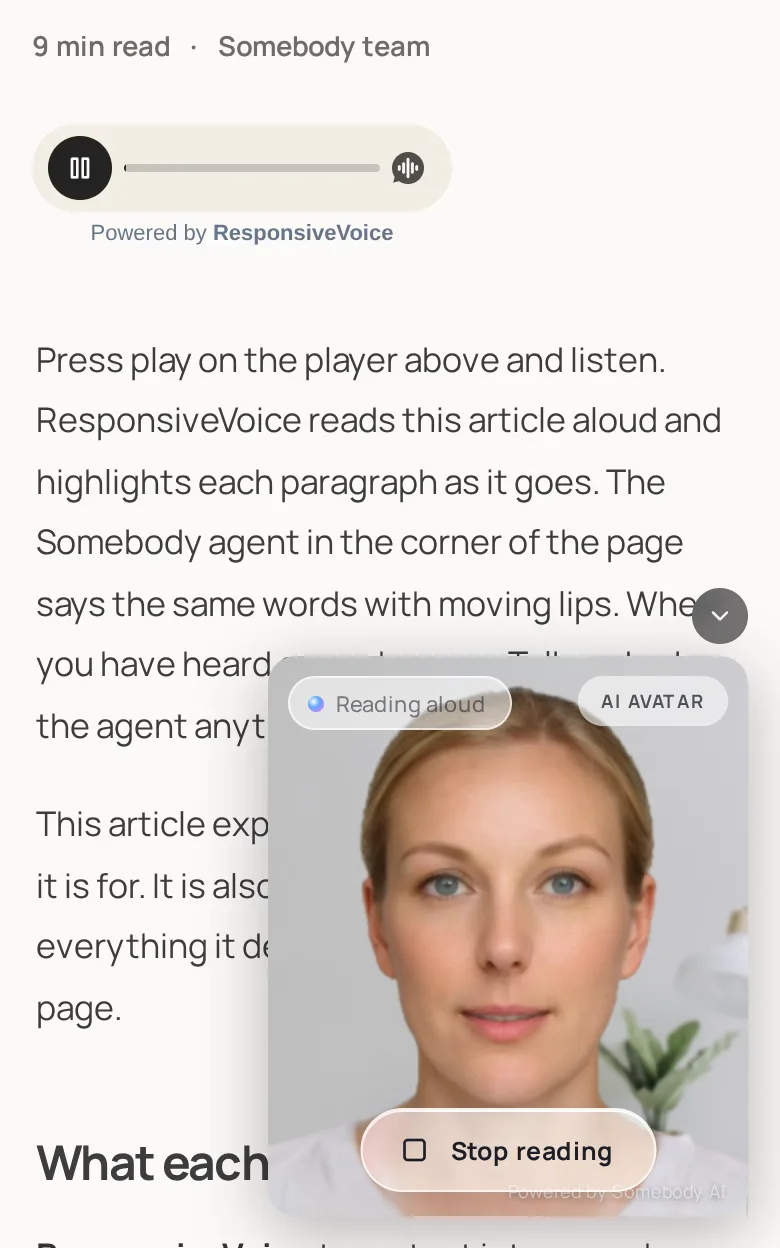
The ResponsiveVoice web player reads your articles aloud, highlights each paragraph and follows your reader down the page. Now it can also have someone doing the reading. Connect the player to a Somebody AI avatar, and a face on your page says every word with matching lip movement. When the reading ends, your visitor can talk to that same presenter and ask questions about what they just heard.
Somebody AI makes conversational avatars that you can embed on any website. This guide shows you how to connect one to the ResponsiveVoice web player, which voices to choose and what it costs. To see it running first, and to read why it works well for publishers, schools and accessibility teams, read how ResponsiveVoice and Somebody AI turn a read-aloud player into a presenter you can talk to on the Somebody AI site. That page reads itself aloud this way.
What you get
- Everything your web player already does. Paragraph highlighting, the mini-player, speed and your brand colours all stay. The avatar follows the player and doesn’t replace it.
- A face that reads along. The avatar’s lips follow the audio ResponsiveVoice plays, paragraph by paragraph. It pauses when the player pauses and stops when it stops.
- A conversation afterwards. Visitors can press Talk at any time to ask the avatar a question. Reading stops and a normal spoken conversation begins.
- No extra speech cost. The avatar uses the same audio your visitors already hear, so you pay for no second voice. ResponsiveVoice synthesises each paragraph once and caches it, and the face is drawn on the visitor’s own device.
Before you start
You need:
- A ResponsiveVoice account with your website verified. The free plan works; see pricing for higher limits.
- A Somebody AI agent. You can create one free at somebodyai.co. Give it the face, name and voice you want your presenter to have.
- Your domain on your ResponsiveVoice key, including any staging or preview domain you test on. ResponsiveVoice only answers requests from domains on the key.
Step 1: choose a voice that can drive a face
The avatar follows the audio your page plays. ResponsiveVoice’s server voices play as audio on the page, so they work. Browser voices (the ones built into Chrome, Edge or Safari) speak outside the page, where nothing can hear them, so the face can’t follow them.
Turn on forceFallback and ResponsiveVoice uses server audio every time:
responsiveVoice.init({ apiKey: 'YOUR_KEY', forceFallback: true, /* ... */ });Step 2: match the reading voice to the presenter
Your presenter also talks in conversations, in its own voice. If it reads in a different voice, visitors hear two people. Pick the ResponsiveVoice voice that matches:
| Your Somebody agent talks with | Read with this in ResponsiveVoice |
|---|---|
| An OpenAI voice (e.g. Marin) | The same OpenAI voice, through bring your own key |
| A Gemini voice | The matching Google voice, through bring your own key |
| Any other voice | The closest ResponsiveVoice voice in language and gender |
Bring your own key (BYOK) is on the Pro plan and above. Add your OpenAI or Google key in the ResponsiveVoice dashboard, then set the voice in the player options.
Step 3: add the avatar and connect it
Add both scripts to the page, then pass the player’s events to the avatar:
<script src="https://embed.somebodyai.co/embed.js"></script>
<script src="https://cdn.responsivevoice.org/sdk/latest/responsivevoice.js"></script>

<script>
  const agent = SomebodyAgent.mount({ agentId: 'YOUR_AGENT_ID' });

  // Call before ResponsiveVoice starts, so the avatar hears the first word.
  const narrator = agent.narrate({
    filter: (el) => !el.isConnected,
    onStop: () => responsiveVoice.cancel(),
  });

  responsiveVoice.addEventListener('OnStart', () => narrator.start());
  responsiveVoice.addEventListener('OnPause', () => narrator.pause(true));
  responsiveVoice.addEventListener('OnResume', () => narrator.pause(false));
  responsiveVoice.addEventListener('OnEnd', () => narrator.ended());

  responsiveVoice.init({
    apiKey: 'YOUR_KEY',
    forceFallback: true,
    features: { webPlayer: { enabled: true } },
  });
</script>
The onStop line works in the other direction. When the visitor presses Stop reading or Talk on the avatar, the web player stops too.
Step 4: tune the player for a presenter
A few web player settings work better with a presenter on the page:
- Keep paragraph highlighting on. It shows readers where the presenter is, so you don’t need captions over the face.
- Consider leaving click-to-play off. It turns each paragraph into a button, which some screen-reader users find noisy, and a click on a link inside a paragraph would start reading.
- Move the mini-player away from the avatar. If the avatar sits bottom-right, put the mini-player bottom-left.
- Use your brand colours for the player (Starter plan and above). The Somebody AI site matches its player to its own palette.
Using WordPress?
If you use the ResponsiveVoice WordPress plugin, the web player is already on your posts. Add the Somebody script and the connecting script in Step 3 to your site’s footer, through your theme or a code-snippets plugin.
What it costs
- ResponsiveVoice: the same characters you use today. The presenter reuses the audio and doesn’t add a second synthesis. One million characters is roughly 20 hours of speech, and each paragraph is cached after its first listen.
- Somebody AI: reading aloud opens no conversation, so it uses no conversation minutes. Minutes count only when a visitor presses Talk. Somebody AI has a free plan to start on.
Good to know
- Browser voices can’t drive the face (see Step 1).
- The presenter answers from what you give it as knowledge. In this first version it isn’t told which paragraphs the visitor heard, so add your key articles to its knowledge.
- The avatar needs version 3.10.0 or later of the Somebody player, which
embed.somebodyai.coserves by default.
See it working
The quickest way to judge it is to hear it. Open ResponsiveVoice + Somebody AI: a read-aloud player with a face you can talk to, press play, and press Talk when you have a question.
Source: Somebody AI, “ResponsiveVoice + Somebody AI: a read-aloud player with a face you can talk to“, somebodyai.co.
Put a voice on your site today
Start on the free ResponsiveVoice plan, turn on the web player, then add a Somebody AI presenter when you are ready.
Get your free API keySee plans and pricing
